How to Check Word Count in Word (Step-by-Step Guide)

how-to-check-word-count-in-word

Whether you’re writing a university essay, preparing a business report, creating an SEO article, or drafting a client proposal, knowing your document’s length is essential. Fortunately, Microsoft Word makes it easy to monitor your progress with its built-in word count feature.

Many people search for how to find word count in Word because they cannot immediately locate the feature or aren’t aware that Word offers several ways to check it. The good news is that Microsoft Word includes multiple methods to show word count and view word count, whether you’re using Windows, Mac, Word Online, or the mobile app.

From my own experience, I rely on the status bar more than any other method. Since I regularly write SEO articles between 1,500 and 2,000 words, having a live word count visible while typing saves time and helps me stay within client requirements. Instead of stopping to open menus repeatedly, I can instantly see whether I’m approaching my target.

In this guide, you’ll learn every available method to check the word count Word displays, along with productivity tips, common mistakes, and best practices that make writing more efficient.

Why Word Count Matters

Word count isn’t just about meeting assignment requirements. It helps writers organize ideas, satisfy client expectations, and produce content that’s appropriately detailed without becoming unnecessarily long.

Here are some situations where checking word count becomes important:

  • Writing essays with strict word limits
  • Preparing reports for school or work
  • Creating SEO blog posts with target lengths
  • Writing books or manuscripts
  • Submitting freelance articles
  • Preparing grant proposals
  • Creating product descriptions
  • Writing resumes and cover letters

Personally, I monitor the word count throughout the writing process instead of waiting until I’ve finished. This habit prevents major editing later and helps maintain a consistent pace.

How to Check Word Count in Word Using the Status Bar

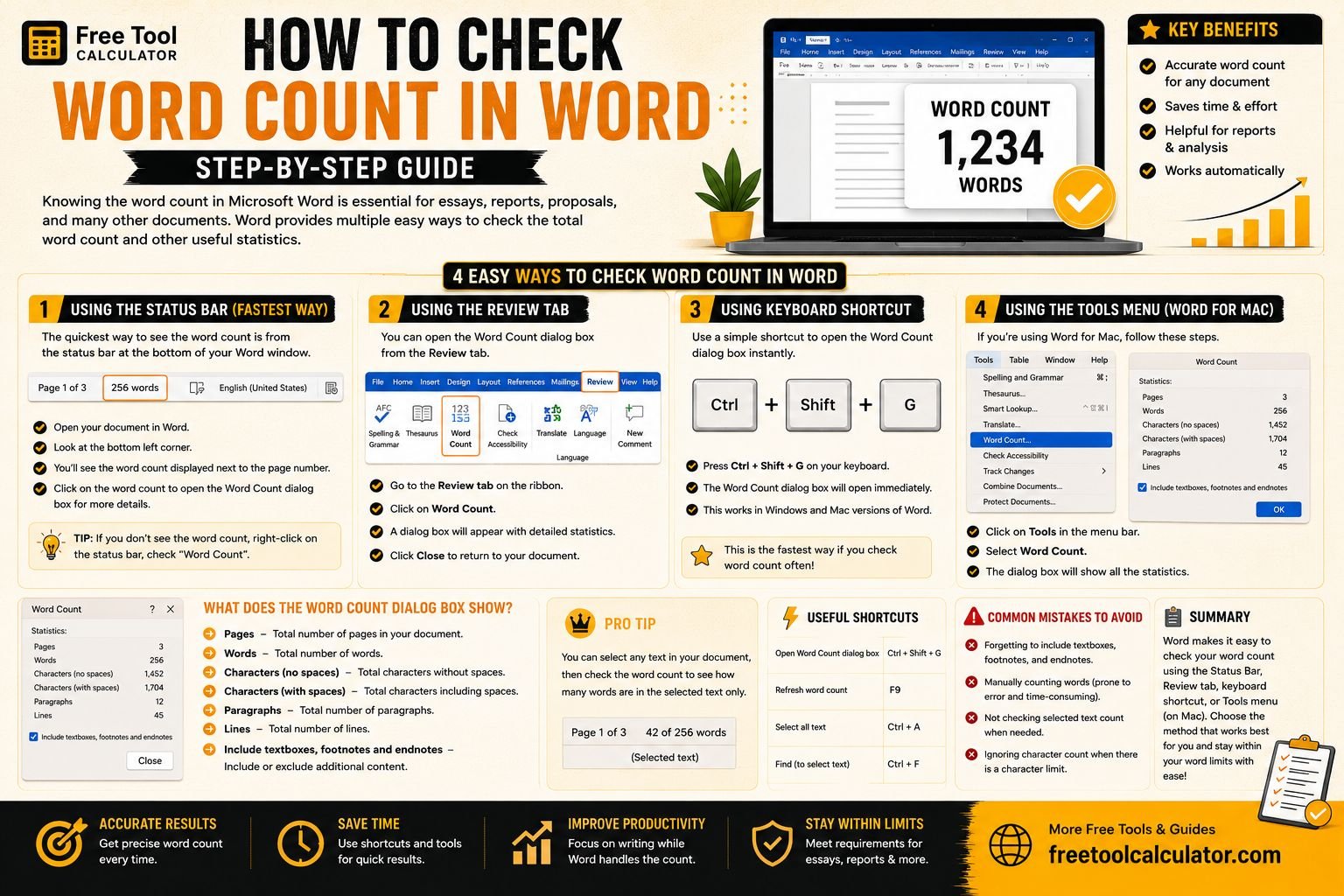
The easiest and fastest way to check your document length is by using the status bar located at the bottom of the Microsoft Word window.

Step-by-Step Instructions

  1. Open your Microsoft Word document.
  2. Look at the bottom-left corner of the window.
  3. The current word count appears automatically.
  4. Continue writing while watching the live count update.

This method is my personal favorite because it updates in real time. Whether I’m writing a blog post or editing a proposal, I don’t need to interrupt my workflow.

Advantages of Using the Status Bar

  • Shows live word count while typing.
  • No menus need to be opened.
  • Works throughout the writing session.
  • Perfect for long-form content creation.
  • Excellent for meeting minimum or maximum word limits.

How to Show Word Count Using the Review Tab

If you need more than just the total number of words, Microsoft Word provides a detailed statistics window through the Review tab.

Steps

  1. Open your Word document.
  2. Click the Review tab.
  3. Select Word Count.
  4. A statistics window will appear.

This window includes much more than total words.

The Word Count Window Displays

  • Total words
  • Pages
  • Characters (with spaces)
  • Characters (without spaces)
  • Paragraphs
  • Lines

I frequently use this window when preparing SEO metadata because character count matters almost as much as word count for page titles and meta descriptions.

How to Find Word Count in Word for Selected Text

Sometimes you don’t need the word count for the entire document. Instead, you may want to count only one paragraph, chapter, or section.

Microsoft Word makes this incredibly easy.

Steps

  1. Select the text you want to measure.
  2. Look at the status bar.
  3. Word immediately displays the selected word count alongside the total document count.

For example, if your document contains 2,000 words but your selected section contains 320 words, Word will display something similar to:

320 of 2,000 words

I use this feature almost every day while editing articles. Instead of checking the entire document repeatedly, I simply highlight the section I’m revising and instantly know whether it meets my target length.

How to View Word Count in Different Versions of Microsoft Word

Although Microsoft Word looks slightly different depending on your device, the word count feature remains easy to access.

VersionWhere to View Word Count
Microsoft 365 (Windows)Status Bar and Review tab
Microsoft Word 2021Status Bar and Review tab
Microsoft Word 2019Status Bar and Review tab
Word OnlineReview menu with simplified interface
Word MobileReview tools depending on device size
Word for MacStatus Bar and Tools menu

I primarily use Microsoft 365 on Windows because it offers the most complete writing experience. Word Online is excellent for quick edits, although its interface is slightly simplified compared to the desktop application.

What Information Does Microsoft Word Count?

Many users assume Word only counts the number of words, but the built-in statistics include several useful writing metrics.

  • Total words
  • Pages
  • Characters with spaces
  • Characters without spaces
  • Paragraph count
  • Line count

For professional writers, these statistics can be extremely valuable. Character count is useful for SEO titles, social media captions, advertising copy, and metadata, while paragraph and line counts help during document formatting and editing.

Real Example: Why I Check Word Count During Every Project

One of the most common tasks in my workflow is writing SEO blog posts that typically range between 1,500 and 2,000 words. Instead of finishing the article first and checking the length afterward, I monitor the live count using the status bar throughout the writing process.

This approach helps me maintain a balanced structure, avoid unnecessary filler content, and ensure every article satisfies client requirements before submission. It also reduces editing time because I know exactly how much content still needs to be written.

Common Mistakes When Trying to Show Word Count in Word

Although Microsoft Word makes it easy to check document statistics, many users still struggle to locate or use the feature effectively. Most of these problems are easy to fix once you know where to look.

Here are the most common mistakes I see beginners make when trying to show word count or view word count in Word.

1. Ignoring the Status Bar

The biggest mistake is overlooking the status bar at the bottom of the Word window. Many users immediately search through menus, even though the live word count is already displayed there.

If you’re wondering how to find word count in Word, always check the bottom-left corner first.

2. Waiting Until the Document Is Finished

Some writers only check their word count after completing the document. This often results in unnecessary editing because the article is either too short or exceeds the required limit.

I recommend checking your progress regularly while writing instead of waiting until the end.

3. Forgetting That Selected Text Can Be Counted

Many people don’t realize Microsoft Word can count only the highlighted portion of a document. This feature is especially useful when editing individual sections, chapters, or paragraphs.

If you’re revising only one section, simply highlight it and Word will display both the selected word count and the total document count.

4. Confusing Character Count with Word Count

Word count and character count serve different purposes.

  • Word Count helps meet assignment or article requirements.
  • Character Count is useful for SEO titles, meta descriptions, advertisements, and social media posts.

Understanding the difference can save time and prevent formatting issues.


Microsoft Word vs Google Docs: Which Word Count Tool Is Better?

Both Microsoft Word and Google Docs provide reliable word counting tools, but they differ slightly in features and usability.

FeatureMicrosoft WordGoogle Docs
Live Word CountYesYes
Character CountYesYes
Paragraph CountYesNo
Line CountYesNo
Selected Text CountYesYes
Professional Formatting ToolsExcellentGood
Offline EditingExcellentLimited

I’ve used both applications extensively. While Google Docs is excellent for collaboration, I still prefer Microsoft Word for professional writing because it provides more comprehensive document statistics in one place. Having pages, paragraphs, lines, and character counts available together makes editing much more efficient.


Expert Tips for Managing Word Count Efficiently

After years of writing blog posts, documentation, reports, and client projects, I’ve developed a workflow that keeps writing organized while ensuring every document stays within its target length.

Keep the Status Bar Visible

I always leave the status bar enabled so I can monitor my progress continuously. Since the word count updates automatically, there’s no need to interrupt the writing process.

Break Long Documents into Sections

Instead of worrying about the total word count all at once, divide your document into logical sections. Assign a rough target to each heading so your content remains balanced.

For example:

  • Introduction – 200 words
  • Main Topic – 900 words
  • Examples – 300 words
  • FAQ – 300 words
  • Conclusion – 150 words

This approach makes long-form writing much easier to manage.

Use Selected Text Count While Editing

When revising a paragraph or chapter, select only that section to see its individual word count. This prevents unnecessary calculations and speeds up editing.

Check Character Count for SEO

As someone who regularly writes SEO content, I don’t only monitor word count—I also check character count when creating page titles, meta descriptions, and social media snippets.

This helps ensure content fits within recommended search engine display limits.

Review Word Count Throughout the Writing Process

One of the best habits I’ve developed is checking progress regularly instead of waiting until the document is complete. This simple workflow reduces editing time and keeps every project on track.


How to Enable Word Count If You Can’t See It

If the live word count isn’t visible, don’t worry. It may simply be disabled on the status bar.

To enable it:

  1. Right-click anywhere on the status bar.
  2. Look for Word Count.
  3. Ensure it’s checked.
  4. The live word count will immediately appear.

This quick adjustment solves one of the most common beginner issues.


Frequently Asked Questions

How do I check word count in Microsoft Word?

The quickest method is to look at the bottom-left corner of the window where the status bar displays the live word count. You can also go to Review → Word Count to see detailed writing statistics.

How do I find word count in Word for only one paragraph?

Select the paragraph or text you want to measure. Microsoft Word automatically displays the selected word count alongside the total document count.

Why can’t I see the word count in Word?

Your status bar may not be displaying it. Right-click the status bar and enable the Word Count option.

Does Word count footnotes and text boxes?

Depending on your settings, Microsoft Word can include text boxes, footnotes, and endnotes in the total word count. You can choose whether to include these items in the Word Count dialog box.

Can I check word count on Word Online?

Yes. Word Online includes a simplified word count feature that can be accessed from the Review tab.

Is Microsoft Word’s word count accurate?

Yes. Microsoft Word is considered one of the most accurate document editors for counting words, characters, paragraphs, and lines, making it a trusted choice for students, professionals, publishers, and content writers.


Final Thoughts

Learning how to check word count in Word is a simple skill that can make a significant difference in your writing workflow. Whether you’re preparing an assignment, creating a professional report, or writing SEO content, knowing exactly how many words you’ve written helps you stay organized and meet your goals.

In my own workflow, the status bar is the quickest and most convenient way to monitor progress because it updates automatically while I type. When I need additional information such as character count, paragraphs, or line totals, I switch to the Review → Word Count window. Combining these two methods ensures I always have the information I need without slowing down my writing.

If you’re new to Microsoft Word, start by using the status bar for quick monitoring and explore the detailed statistics window as your writing needs grow. Over time, checking your word count regularly will become second nature, helping you produce more accurate, polished, and professional documents every time.

Key Takeaways

  • The fastest way to show word count is by using the status bar.
  • The Review tab provides detailed statistics, including characters, pages, paragraphs, and lines.
  • You can view word count for selected text by highlighting it.
  • Microsoft Word offers consistent word count features across Windows, Mac, Word Online, and Mobile.
  • Monitoring your progress while writing saves editing time and helps you stay within required word limits.
  • For professional writing, combine the live status bar with the detailed Word Count window for the most efficient workflow.

Share this article:

On This Page

Subscribe to our newsletter

Read the latest articles from our experts

Related Posts

What is Legal Size Paper Complete Guide to Dimensions Uses and Printing

What is Legal Size Paper Complete Guide to Dimensions Uses and Printing

Many people face printing problems without even realizing the real cause. You open a document print it and suddenly the content looks cut off or stretched. This usually happens because you selected the wrong paper size.

Tools & Resources

Explore our collection of professional tools designed to streamline your workflow

Report a Bug