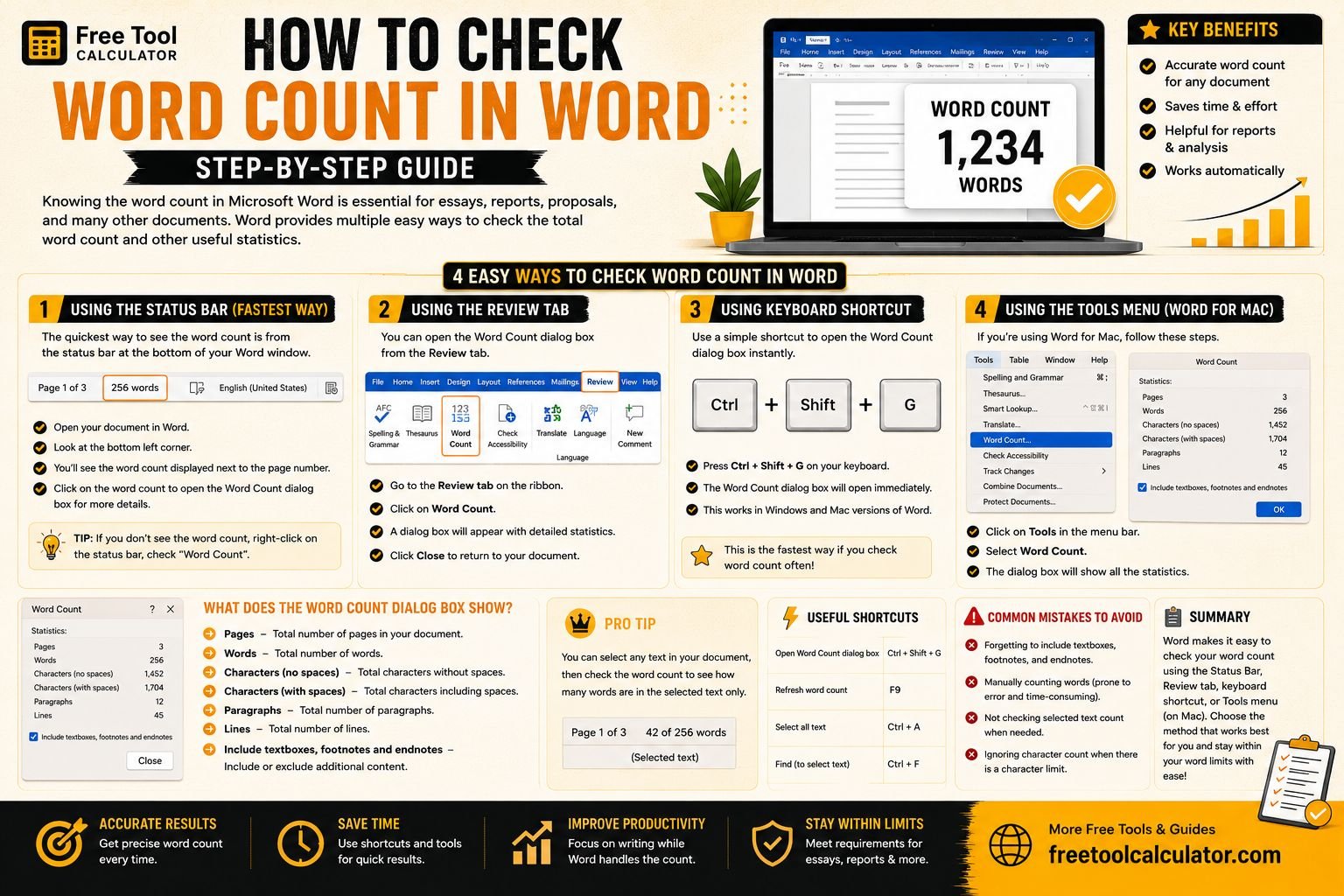
Quick answer: In Microsoft Word desktop versions, the document word count commonly appears on the status bar at the bottom of the window. You can also open the detailed Word Count dialog from the Review tab to see words, pages, characters, paragraphs and lines.
Method 1: Check the Status Bar
- Open your document in Word.
- Look at the status bar along the bottom of the Word window.
- Find the word-count indicator.
- Select text if you want to inspect the count for only that selection.
If the word count is not visible, status-bar options can differ by version and platform. The Review-tab method below provides another route.
Method 2: Open the Word Count Dialog
- Open the Review tab.
- Select Word Count.
- Review the statistics shown for the document or current selection.
Depending on the Word version, the dialog can report pages, words, characters with and without spaces, paragraphs and lines.
How to Count Words in Only Part of a Document
Select the paragraph, section or other text you want to measure. Word can display statistics for the selected text rather than requiring you to copy it into a separate document.
Do Footnotes and Endnotes Count?
The detailed Word Count dialog can provide an option related to textboxes, footnotes and endnotes in supported desktop versions. Check that setting when an assignment or publisher specifies whether those elements should be included.
Word Count in Word for the Web
Word for the web also provides word-count information, but the interface and counting behavior can differ from the desktop application. If an exact submission limit matters, verify the count in the version required by your school, publisher or organization.
Why Two Word Counters May Give Different Results
- Hyphenated terms may be treated differently.
- Headers, footers, footnotes, endnotes or text boxes may be included differently.
- Symbols and number strings may follow different counting rules.
- Online tools may tokenize punctuation differently from Word.
How to Check Character Count
Open the detailed Word Count dialog. It commonly reports characters both with spaces and without spaces. This is useful when a form or publication sets a character rather than word limit.
Common Problems
- No word count on the status bar: use Review → Word Count or check status-bar display options where available.
- Count seems too high: check whether extra elements such as notes or text boxes are included.
- Only part of the document is counted: make sure text is not still selected.
- Different result from another tool: compare what each tool includes and how it treats special text.
Frequently Asked Questions
Can Word count only selected text?
Yes. Select the text first and then inspect the word-count information.
Does Word count numbers as words?
Word-count behavior depends on how the text is structured. If an exact institutional rule matters, use the required software and verify what it counts.
Can I see character count in Word?
Yes. The Word Count dialog commonly includes character totals with and without spaces.
Last reviewed: October 2026. Interface labels can vary by Word version and platform.