element-4.png

HTML Escape Tool Online Encode and Decode Entities Safely

Escape or unescape HTML entities instantly, protect markup, copy clean output, view stats, and validate text safely for developers today.

Developer Tool

HTML Escape Tool Online

Encode or decode HTML entities to keep markup safe, readable, and copy-ready.

Input Text

Paste text or markup, choose a mode, and convert instantly.

Success

Converted successfully

Review the result and copy in one click.

Valid Encode Safe Output

Conversion Score

100%

Score reflects successful parsing and meaningful conversion changes.

Output Stats

Mode Encode
Input Size 45 B
Output Size 61 B
Changes 5
Entities 5

What is an HTML escape tool

An HTML escape tool is an online utility that encodes and decodes special characters into HTML entities. It converts characters like angle brackets quotes and ampersands into safe entity representations. This prevents browsers from interpreting text as code. It is essential for secure web development and content handling.

Why HTML escaping is important

HTML escaping protects websites from rendering issues and security vulnerabilities such as cross site scripting. When user input is displayed without escaping it may be executed as HTML or JavaScript. Encoding ensures text is shown exactly as intended. This improves safety and data integrity.

How the HTML escape tool works

The tool scans input text and replaces reserved characters with their corresponding HTML entities. For example less than becomes lt and greater than becomes gt. Decoding reverses this process back to readable characters. Results are generated instantly.

What is HTML entity encoding

HTML entity encoding represents special characters using entity names or numeric codes. Common entities include amp lt gt quot and apos. Encoding ensures characters do not interfere with HTML structure. It is widely used in forms templates and code snippets.

What is HTML entity decoding

HTML entity decoding converts encoded entities back into their original characters. This is useful when displaying stored content or debugging encoded data. Decoding restores readability without altering meaning. The tool supports both named and numeric entities.

Which characters should be escaped in HTML

Characters like less than greater than ampersand quotes and apostrophes should be escaped. These characters have special meaning in HTML syntax. Escaping them prevents accidental tag creation. It ensures consistent rendering across browsers.

Is this tool useful for developers

Yes developers use HTML escaping when handling user input templates and dynamic content. It helps prevent security risks and display issues. This tool saves time and avoids manual encoding mistakes. It is useful for frontend and backend workflows.

Can content writers and editors use this tool

Yes writers and editors often paste code snippets into articles and documentation. Escaping ensures snippets display correctly without breaking page layout. It improves content quality and safety. No technical expertise is required.

Does the tool support large text and code blocks

Yes the HTML escape tool can process large text blocks and code snippets efficiently. Performance remains fast and accurate. All characters are handled correctly. No data is lost during encoding or decoding.

Is this HTML escape tool secure

The tool processes text instantly and does not store user data. Encoding and decoding occur within the session. Sensitive content should still be handled responsibly. No login or signup is required.

Is this HTML escape tool free to use

Yes this HTML escape tool is completely free. No registration or payment is required. You can encode and decode entities unlimited times. Results are instant and private.

Who should use an HTML escape tool

This tool is ideal for web developers programmers writers students and content managers. Anyone working with HTML content can benefit. It helps ensure safe and correct rendering. The interface is simple and user friendly.

Complete Guide to the HTML Escape Tool

The HTML escape tool is designed to convert special markup characters into entity-safe text. It is most useful for developers, writers, documentation teams and users displaying code snippets. A good calculator or online utility should do more than return an output: it should make the inputs understandable, show what the result represents, and help you recognize when the result needs additional context.

This guide explains how to use the tool carefully, how to check your inputs, how to interpret the result, and what limitations matter. The goal is to make the page useful even if you are new to the subject rather than presenting a calculator with little explanation.

How to Use This Tool Step by Step

  1. Start with the source information. Gather the values, text or settings you actually want to work with instead of guessing.
  2. Choose the correct options. Pay attention to units, formats, modes and labels because a correct calculation with the wrong setting can still produce an unusable answer.
  3. Enter the information carefully. Check decimal points, signs, spacing and copied text before running the tool.
  4. Generate the result. Use the calculate, convert, format or generate control provided by the tool.
  5. Review the output. Ask whether the result is reasonable for the information entered. If it looks surprising, recheck the inputs before relying on it.
  6. Use the result in context. Copy, download or apply the output only after checking any assumptions described on this page.

What the Result Means

The output is based on the information you provide and the logic built into the tool. It should be treated as a transparent aid to a task, not as proof that the underlying input was correct. For numerical tools, keep units consistent and avoid rounding important intermediate values too early. For text and developer tools, review the transformed output before putting it into production. For generators, treat the result as a starting point that can be edited for your actual purpose.

When This Tool Is Useful

  • Getting a quick result without building a spreadsheet or writing code.
  • Checking a manual calculation or transformation.
  • Exploring how changing an input affects the output.
  • Preparing examples for study, documentation or planning.
  • Reducing repetitive work when the same type of task occurs frequently.

Accuracy, Assumptions and Limitations

Escaping text helps display markup literally, but it is not by itself a complete security strategy for every application context. Use context-appropriate output encoding and security controls.

For the most reliable result, use current and correctly formatted source data. If the output will affect money, health, safety, legal compliance, academic assessment or production systems, verify it against the authoritative source or professional guidance relevant to that decision.

Common Mistakes to Avoid

  • Using the wrong unit, format, mode or option.
  • Copying incomplete source data into the tool.
  • Assuming every online tool uses exactly the same method.
  • Rounding or editing an input before the calculation is complete.
  • Using an output without checking whether it is realistic.
  • Treating an estimate as an exact measurement.

How to Check Your Result

A simple verification process improves reliability. First, repeat the task with a small example whose answer you already know. Second, change one input and confirm the output changes in the expected direction. Third, compare an important result with an independent method or authoritative reference. These checks can reveal unit mistakes, copied characters, incorrect settings and unrealistic assumptions.

Related Search Questions and Topics

People looking for this tool also commonly search for topics such as HTML escape online, escape HTML characters, HTML entity encoder, encode HTML, HTML special characters, convert HTML to entities, escape less than greater than, HTML text encoder. Closely related needs include HTML code escape, encode ampersand HTML, HTML entities converter, safe HTML display, HTML developer tool, escape markup, online HTML encoder. These phrases describe related user questions; the page uses them naturally rather than repeating the same keyword unnecessarily.

Frequently Asked Questions

The tool is provided for convenient online use. You can enter your information, generate a result and use the explanatory guidance on this page without needing to perform the process manually.

How accurate is the result?

Accuracy depends on correct inputs and on whether the tool’s method fits your use case. Mathematical transformations can be exact for valid inputs, while estimates and planning tools naturally have more uncertainty.

Why did I get a different result from another website or app?

Different tools may use different defaults, rounding rules, data sources, assumptions or software engines. Compare the inputs and methodology before deciding that either result is wrong.

Can I use the result for professional decisions?

Use the tool as an aid. For decisions with significant financial, health, safety, legal or technical consequences, verify the result using the standards and authoritative sources applicable to your situation.

What should I do if the tool gives an unexpected answer?

Recheck every input, confirm the selected units or mode, remove accidental spaces or symbols where relevant, and test a simple known example. If the issue remains, report the example through the site contact page so it can be reviewed.

Editorial and Quality Approach

FreeToolCalculator aims to pair interactive tools with enough explanation for users to understand what they are doing. Pages are reviewed for clarity, usability and consistency, and important limitations are stated rather than hidden. We avoid presenting estimates as guarantees. If you notice an error, outdated instruction or unclear result, you can report it so the page or tool can be checked.

Last reviewed: October 2026.

Practical Tips for Better Results

  • Keep the original source information available so you can compare it with the processed result instead of relying on memory.
  • When a field accepts a number, distinguish between a missing value and zero. They can have very different meanings in a calculation.
  • If you are comparing several scenarios, change one variable at a time. This makes it easier to understand which input caused the difference.
  • Save or record important inputs together with the result. A number without its assumptions can be difficult to reproduce later.
  • For repeated work, use a consistent input format. Consistency reduces avoidable mistakes and makes comparisons more meaningful.
  • Do not assume more decimal places automatically mean more accuracy. Precision in the displayed result cannot compensate for uncertain source data.
  • On mobile devices, double-check fields after using autofill or copy and paste because formatting characters can sometimes be carried into an input.
  • If a tool has reset or clear controls, use them before starting a completely new scenario so values from the previous calculation are not overlooked.
  • For teaching or learning, work through one example manually before using the automated result. This helps you understand the relationship between inputs and output.
  • For business or technical documentation, note the date of the calculation and the method used so another person can reproduce the result later.

This guide supports the existing HTML Escape Tool with practical instructions, interpretation guidance, common mistakes and verification steps. The interactive tool remains the primary feature of the page, while the additional content helps users understand what the output represents and how to use it responsibly.

Understanding Developer And Text Utilities

Formatting and transformation tools can improve readability or convert representations, but they do not prove that code, markup or data is valid, safe or appropriate for a production system.

For dependable use, keep the original source information beside the result and recheck any value that appears unexpected. A clear, reproducible calculation is more useful than an unexplained output with many decimal places.

Check the Input Before Calculating

Verify spelling, decimal points, signs, dates, separators, units and selected options. A calculator can process the data supplied, but it cannot know that a source measurement or copied value was wrong.

How to Verify the Result

Test a simple example whose answer you can calculate or inspect independently. If the tool handles that example as expected, repeat the process with your real input. This is a practical way to identify misunderstandings about format or calculation direction.

Precision, Rounding and Assumptions

Displayed precision should not be confused with real-world accuracy. When inputs are measured or estimated, the output inherits those limitations. Use sensible rounding and note any assumptions that materially affect interpretation.

Why Similar Tools Can Differ

Different utilities can use different defaults, reference data, definitions, rounding rules or conventions. Compare the underlying inputs and assumptions before concluding that one result is incorrect.

Responsible Use

Use the result for the purpose the tool is designed to support. Where an output affects health, safety, money, legal rights, employment, engineering or another consequential decision, confirm the relevant facts with the appropriate authoritative source or qualified professional.
More Tools

Animated Gradient Background Generator

Animated Gradient Background Generator helps you create smooth CSS backgrounds, preview motion, adjust colors, and copy ready-to-use code instantly.

Image Compressor

Reduce image file size quickly using a free online image compressor designed for faster loading and high quality visuals.

Image Cropper Tool

Crop images quickly and accurately using a free online image cropper tool designed for clean simple and professional results.

HTML Entity List

Comprehensive HTML entity list featuring ASCII, ISO 8859-1 characters/symbols, math, Greek, and miscellaneous with names, numbers, and descriptions for easy reference.

Lorem Ipsum Generator

Generate polished Lorem Ipsum paragraphs, sentences, or words with optional HTML markup, accurate stats, and one-click copy for projects.

CSS Beautifier & Minifier

Beautify, minify, and validate CSS instantly with clean indentation, safe comment handling, fast copy buttons, and clear output stats.

JavaScript Formatter & Beautifier

Beautify, format, validate, and minify JavaScript instantly with clean indentation, readable output, copy buttons, and developer friendly stats.

XML to JSON Converter

Convert XML to JSON or JSON to XML instantly with validation, pretty output, copy buttons, and clear developer friendly rules.

Regex Pattern Tester

Test regex patterns with flags, highlights, group captures, and replace previews, then copy clean reports and results instantly.

SQL Formatter and Beautifier

Beautify and minify SQL queries with uppercase keywords, readable indentation, quick copy buttons, and instant developer-friendly output stats.

XML Formatter & Beautifier

Beautify, validate and minify XML with clean indentation, helpful validation messages, quick copy buttons, and readable developer output.

HTML Formatter & Beautifier

Beautify and minify HTML with clean indentation, safe formatting, quick copy buttons, and helpful stats for developers instantly.

Our Blogs

PPC Budget Calculator Guide: How to Calculate Your Google Ads Budget & Maximize ROI

PPC Budget Calculator Guide: How to Calculate Your Google Ads Budget & Maximize ROI

Planning your advertising budget is essential for running profitable PPC campaigns. This guide explains how to calculate a PPC budget, estimate Google Ads costs, understand CPC and ROI, and use a budget calculator to make smarter advertising decisions while controlling costs and improving campaign performance.

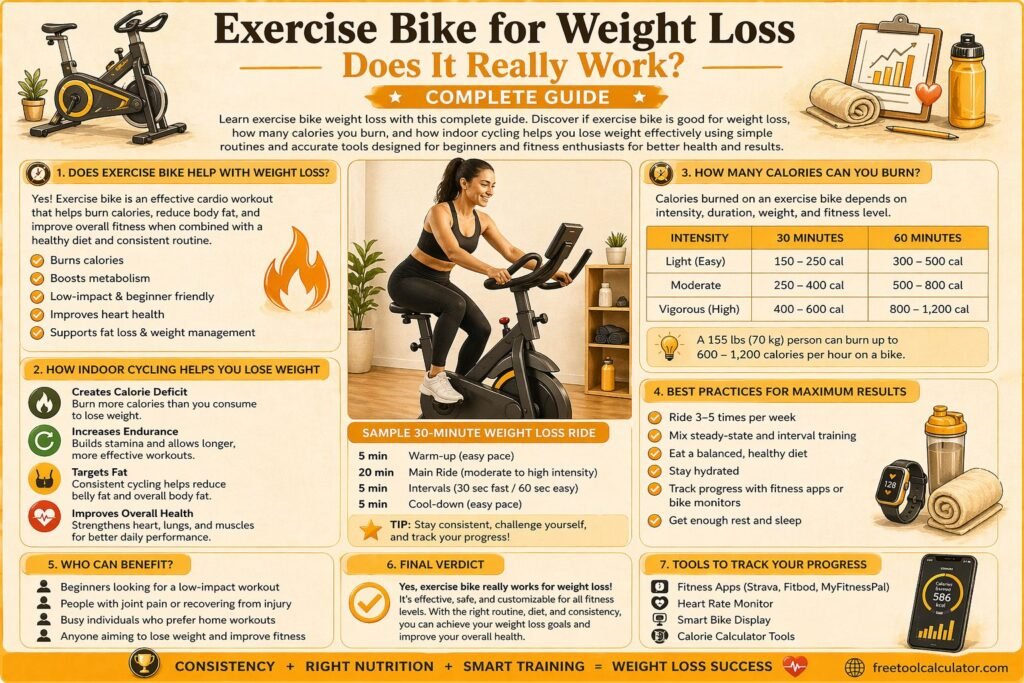
Exercise Bike for Weight Loss Does It Really Work Complete Guide

Exercise Bike for Weight Loss Does It Really Work Complete Guide

Learn exercise bike weight loss with this complete guide Discover if exercise bike is good for weight loss, how many calories you burn, and how indoor cycling helps you lose weight effectively using simple routines and accurate tools designed for beginners and fitness enthusiasts for better health and results

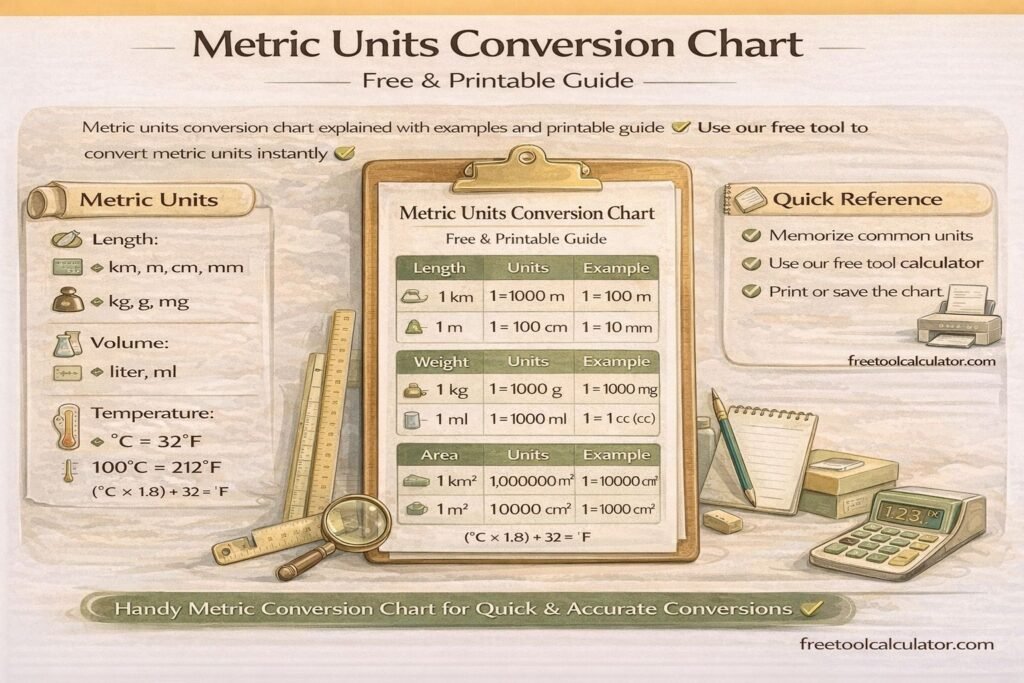
Metric Units Conversion Chart Free and Printable Guide

How to Convert Metric Units Easily (Step-by-Step Guide)

Metric unit conversion becomes simple when you understand prefixes and place values. This guide explains the metric system, step-by-step conversion methods, memory tricks, solved examples, and practice questions to help students and professionals convert metric units quickly and accurately.

Eastern Time Zone States & Cities (Complete List) EST vs EDT Explained

Eastern Time Zone States & Cities (Complete List): EST vs EDT Explained

The Eastern Time Zone covers a large portion of the United States, including many of its most populated states and cities. This guide explains which states use Eastern Time, how Daylight Saving Time affects the region, and answers common questions about Ohio, Michigan, Maryland, North Carolina, and other eastern states.

Steps to Calories Conversion and Why It Matters Steps to calories conversion is an important concept for anyone tracking fitness, weight loss, or daily activity levels. It helps estimate how many calories you burn based on the number of steps you take. This calculation is widely used in fitness tracking apps and wearable devices to give users a better understanding of their physical activity. Knowing how to convert steps to calories allows you to monitor your progress and adjust your routine accordingly. Whether you are trying to lose weight, maintain fitness, or improve overall health, understanding this conversion provides valuable insights. You can easily convert steps to calories using this free tool and get accurate results instantly. What Is Steps to Calories Conversion Steps to calories conversion refers to estimating the number of calories burned while walking or running based on step count. Since each step requires energy, your body burns calories during movement. The total calories burned depend on factors such as body weight, walking speed, and step length. This method is commonly used because it is simple and accessible. Most people track their steps daily using smartphones or fitness trackers, making it easy to estimate calorie burn without complex calculations. Understanding steps to calories helps you stay motivated and maintain consistency in your fitness journey. It also provides a clear measurement of your daily activity level. Steps to Calories Formula Explained The steps to calories formula is based on average energy expenditure per step. A common estimate is that a person burns approximately 0.04 to 0.06 calories per step. However, this value can vary depending on individual factors. A simple formula is Calories burned equals steps multiplied by calories per step For example, if you take 10000 steps and burn 0.05 calories per step, the total calories burned would be 500. This formula provides a quick estimate but may not be fully accurate for everyone. Using a reliable calculator ensures better precision and personalized results. Factors That Affect Calories Per Step Calories per step are not the same for everyone. Several factors influence how many calories you burn during physical activity. Body weight is one of the most important factors. Heavier individuals tend to burn more calories because their bodies require more energy to move. Walking speed also plays a role. Faster walking or running increases calorie burn compared to slow walking. Step length and terrain also affect energy expenditure. Walking uphill or on uneven surfaces requires more effort and burns more calories. Understanding these factors helps you make more accurate estimates when performing steps to calories conversion. How to Convert Steps to Calories Accurately To convert steps to calories accurately, start by tracking your daily step count. Then use an appropriate calorie per step value based on your body weight and activity level. Multiply the steps by this value to estimate calories burned. For more accurate results, it is recommended to use a tool that considers multiple factors. You can calculate steps to calories using this free calculator and get personalized results instantly. Using a dedicated tool ensures that your calculations are based on reliable data, making your fitness tracking more effective. Real Examples of Steps to Calories Conversion Examples make it easier to understand steps to calories conversion. If a person walks 5000 steps and burns approximately 0.05 calories per step, they would burn around 250 calories. Similarly, walking 10000 steps may burn about 400 to 600 calories depending on factors like weight and speed. These estimates show how increasing your step count can significantly impact calorie burn. Tracking your daily steps and converting them into calories helps you stay consistent and motivated in your fitness routine. Benefits of Tracking Steps to Calories Tracking steps to calories provides several benefits. It helps you understand how active you are throughout the day and encourages you to stay consistent. It also allows you to set realistic fitness goals and measure progress over time. For individuals trying to lose weight, this method provides a simple way to monitor calorie expenditure. It also helps in maintaining a balance between calorie intake and output. Using tools like a calorie calculator can further enhance your understanding of daily energy needs and improve your overall fitness plan. Common Mistakes in Steps to Calories Calculation One common mistake is assuming that calories per step are the same for everyone. This can lead to inaccurate estimates. Another mistake is ignoring factors such as walking speed and terrain, which can significantly affect calorie burn. Relying solely on step count without considering overall activity level is another issue. For example, strength training and other exercises also contribute to calorie burn but are not reflected in step count. Using accurate tools and understanding the limitations of step based calculations helps avoid these mistakes. Advanced Tips to Improve Accuracy To improve accuracy, consider using wearable devices that track additional metrics such as heart rate and distance. These devices provide more precise calorie estimates. Maintaining a consistent walking routine also helps in getting reliable data. Tracking your progress over time allows you to identify patterns and make necessary adjustments. Combining step tracking with other tools like a tdee calculator can give a complete picture of your daily energy expenditure. This approach helps you manage your fitness goals more effectively. How Steps to Calories Helps in Weight Loss Steps to calories conversion is a useful tool for weight loss. By increasing your daily step count, you can burn more calories and create a calorie deficit, which is essential for losing weight. For example, adding an extra 2000 steps to your daily routine can burn additional calories over time. This small change can lead to significant results when combined with a balanced diet. Understanding how to convert steps to calories allows you to set realistic goals and track your progress effectively. It also helps you stay motivated and consistent. Conclusion Steps to Calories Conversion Made Simple Steps to calories conversion is a simple yet powerful way to track your physical activity and improve your health. By understanding the steps to calories formula and using accurate tools, you can estimate your calorie burn effectively. If you want precise and instant results, you can use this free steps to calories calculator and track your daily activity with ease. Combining this with other health tools ensures a complete and effective fitness strategy for long term success.

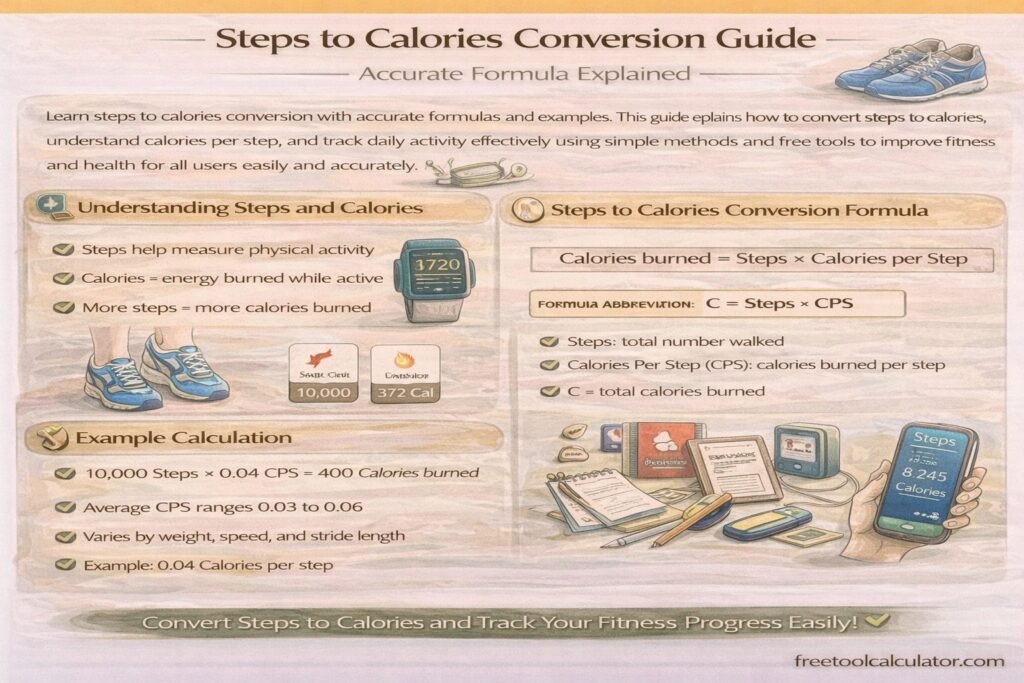
How to Convert Steps to Calories: Formula, METs and Examples

Learn steps to calories conversion with accurate formulas and examples This guide explains how to convert steps to calories, understand calories per step, and track daily activity effectively using simple methods and free tools to improve fitness and health for all users easily and accurately

How to Make Brown Color Complete Paint Mixing Guide for Beginners

How to Make Brown Paint: Color Mixing Recipes and Adjustments

Learn how to make brown color using simple paint mixing techniques This complete guide explains what colors make brown, how to adjust shades, and how to create perfect tones for painting, design, and art projects using easy methods suitable for beginners and professionals alike with accurate and practical results

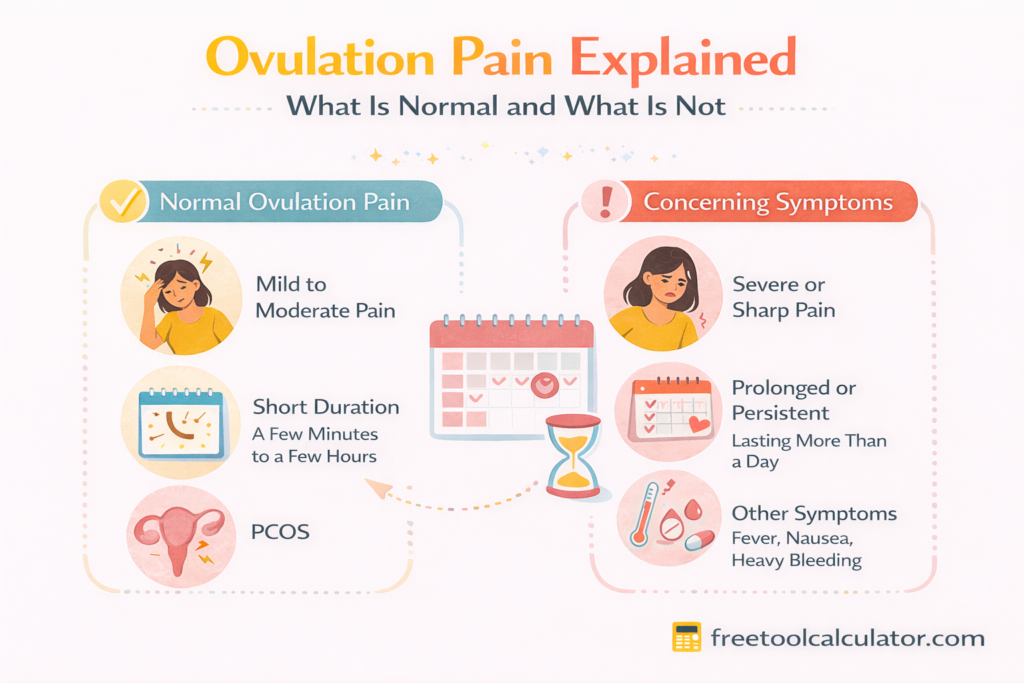
Ovulation Pain Explained What Is Normal and What Is Not

Ovulation Pain Explained What Is Normal and What Is Not

Ovulation pain is a common mid cycle symptom that can range from mild discomfort to sharp cramps. This doctor written guide explains what ovulation pain feels like why it happens how to identify normal ovulation pain and when pelvic pain may signal an underlying condition requiring medical attention.

Essential Components of a Valid Invoice – Complete Guide for Accurate Billing

What Should an Invoice Include? Essential Invoice Information

This guide explains essential invoice components including seller and buyer details, invoice number, dates, itemized charges, taxes, totals, and payment terms. Learn how to create accurate, professional invoices, avoid common billing mistakes, and use an invoice generator tool to streamline invoicing, improve cash flow, and ensure full tax compliance globally.

Vibration Plate Exercises: A Complete Workout Routine Guide

Vibration Plate Exercises: A Complete Workout Routine Guide

New to vibration plate exercises? Discover a full-body workout routine, science-backed benefits for weight loss, and proper form tips. Start your 10-minute daily plan today.

How to Calculate Working Days Only: Excluding Weekends and Holidays

How to Calculate Working Days Between Two Dates

Calculating working days requires subtracting two dates and then removing Saturdays, Sundays, and public holidays. This guide explains the exact method, from basic date difference to full business day calculation, with practical examples for project planning, invoicing, and deadline management.

Report a Bug