Whether you’re preparing payroll, creating freelance invoices, filling out employee timesheets, or tracking billable hours, understanding time to decimal conversion is an essential skill. While hours and minutes are easy for people to read, most payroll systems, accounting software, and spreadsheets require time to be entered as decimal hours.
Many people search for ways to convert time to decimal because they aren’t sure how minutes translate into decimal values. A common misconception is writing 1 hour 30 minutes as 1.30, when the correct decimal value is actually 1.5 hours. This simple misunderstanding can result in inaccurate invoices, incorrect payroll calculations, and reporting errors.
From my own experience, I usually rely on an online time to decimal calculator whenever I’m working with multiple time entries. It’s the fastest method and significantly reduces the chance of calculation mistakes. However, I also understand the manual calculation process because it’s useful for verifying results and working without internet access.
In this complete guide, you’ll learn everything you need to know about time conversion to decimal, including manual formulas, practical examples, Excel methods, common mistakes to avoid, and when using a calculator is the better option.
What Is Time to Decimal Conversion?
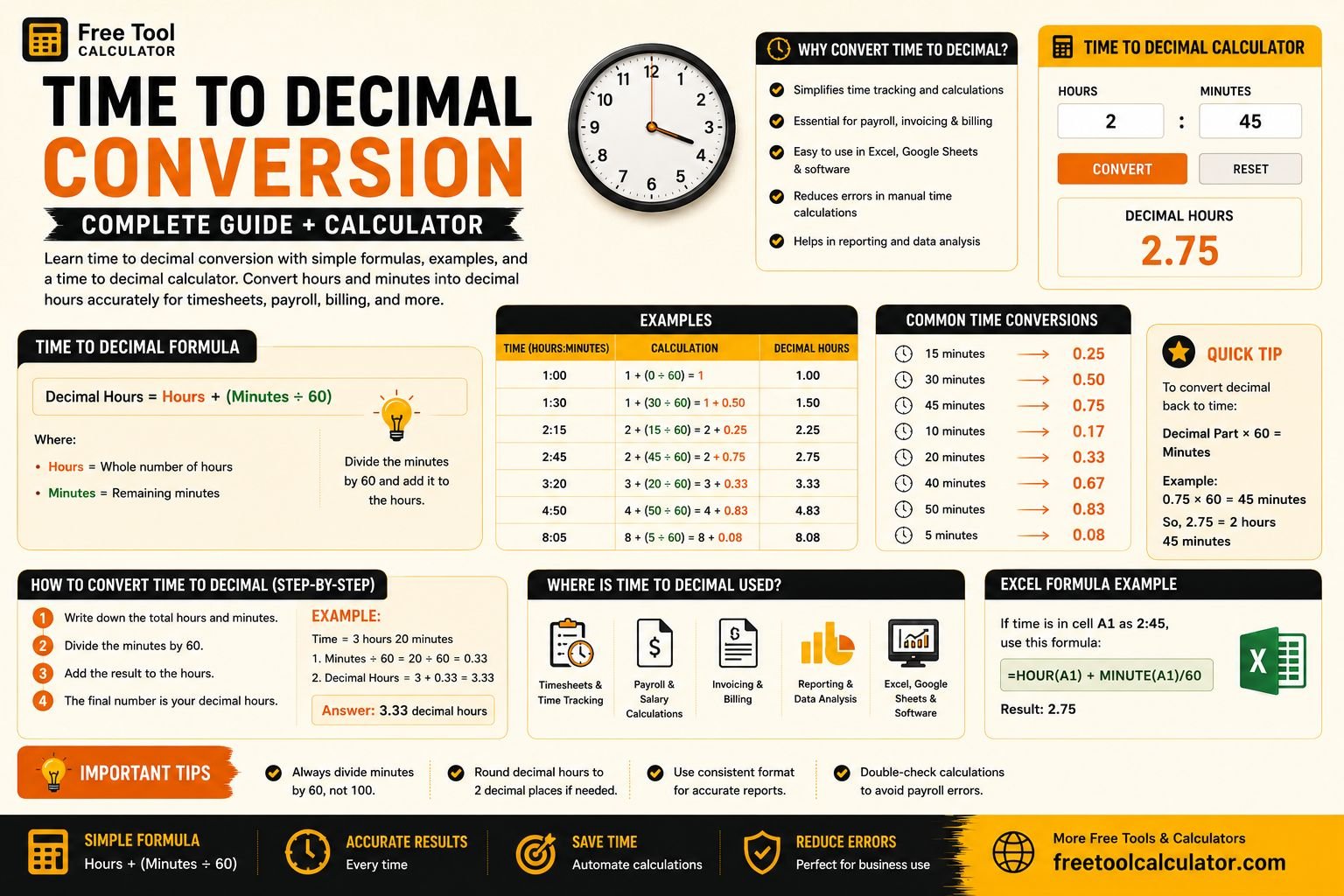
Time to decimal conversion is the process of converting hours and minutes into a single decimal number representing total hours. Instead of expressing time as hours and minutes, the minutes are divided by 60 and added to the hour value.
For example:
- 1 hour 15 minutes = 1.25 hours
- 2 hours 30 minutes = 2.50 hours
- 3 hours 45 minutes = 3.75 hours
- 5 hours 10 minutes = 5.17 hours
This format is commonly used by payroll software, accounting applications, project management tools, and billing systems because decimal values are much easier to calculate than traditional hours and minutes.
Why Convert Time to Decimal?
There are many situations where standard time formatting isn’t practical. Decimal hours simplify calculations and reduce the likelihood of mathematical errors.
Some of the most common use cases include:
- Employee payroll calculations
- Freelance invoicing
- Consulting and legal billing
- Construction project timesheets
- Employee attendance tracking
- Project management software
- Accounting and bookkeeping
- Excel reporting and analysis
In my own freelance work, converting time into decimal hours makes calculating invoices much quicker. Rather than adding multiple hour-and-minute entries manually, I simply multiply decimal hours by my hourly rate to determine the total payment.
How to Convert Time to Decimal Manually
The manual calculation is surprisingly simple once you understand the basic formula.
The Formula
Decimal Hours = Hours + (Minutes ÷ 60)
This formula works because there are 60 minutes in one hour. Dividing the minutes by 60 converts them into a fraction of an hour.
Example 1
2 Hours 30 Minutes
Calculation:
2 + (30 ÷ 60)
= 2 + 0.5
= 2.5 Hours
Example 2
4 Hours 15 Minutes
4 + (15 ÷ 60)
= 4 + 0.25
= 4.25 Hours
Example 3
7 Hours 45 Minutes
7 + (45 ÷ 60)
= 7 + 0.75
= 7.75 Hours
Once you understand this formula, you’ll be able to perform basic time conversion to decimal calculations without relying on any software.
Using a Time to Decimal Calculator
Although manual calculations are useful, an online time to decimal calculator is usually the quickest and most accurate solution—especially when you’re converting multiple entries.
I personally prefer using a calculator whenever I’m processing freelance timesheets or preparing invoices. Instead of calculating each entry individually, I can convert multiple time values within seconds while avoiding arithmetic mistakes.
Benefits of Using a Time to Decimal Calculator
- Fast and accurate conversions
- Eliminates manual calculation errors
- Ideal for payroll and timesheets
- Perfect for freelancers and consultants
- Useful for project managers handling multiple employees
- Saves time when processing large datasets
If you regularly work with employee hours, client billing, or project tracking, a calculator can significantly improve efficiency while ensuring consistent results.
Time to Decimal Conversion Chart
The following chart lists some of the most commonly used conversions. Keeping these values handy can save time during everyday calculations.
| Hours:Minutes | Decimal Hours |
|---|---|
| 0:15 | 0.25 |
| 0:30 | 0.50 |
| 0:45 | 0.75 |
| 1:15 | 1.25 |
| 1:30 | 1.50 |
| 1:45 | 1.75 |
| 2:15 | 2.25 |
| 2:30 | 2.50 |
| 2:45 | 2.75 |
| 3:15 | 3.25 |
| 3:30 | 3.50 |
| 3:45 | 3.75 |
Real-World Example: Freelance Billing
One of the most common reasons I perform time to decimal conversions is when creating freelance invoices. Clients are typically billed by the hour, so converting hours and minutes into decimal hours makes payment calculations much easier.
For example, if I worked 5 hours and 30 minutes at an hourly rate of $40, I first convert the time into decimal hours:
5 + (30 ÷ 60) = 5.5 hours
I can then calculate the invoice total:
5.5 × $40 = $220
This method is much simpler than calculating payments using hours and minutes separately, which is why many freelancers, consultants, and agencies rely on decimal hours for billing.
Time Conversion to Decimal in Microsoft Excel
If you frequently work with timesheets or payroll data, Microsoft Excel can automate time conversion to decimal using built-in formulas.
In my own workflow, I often use Excel instead of performing repetitive manual calculations. Once the formula is entered, every new time value is converted automatically, saving a considerable amount of time and reducing the risk of human error.
Excel is particularly useful for businesses, HR departments, accountants, project managers, and freelancers who process dozens—or even hundreds—of time entries every week.
Common Mistakes When You Convert Time to Decimal
Although the formula for time to decimal conversion is simple, many people still make mistakes that can lead to inaccurate payroll calculations, incorrect invoices, and reporting errors. Understanding these common pitfalls can save time and prevent costly mistakes.
1. Treating Minutes as Decimal Numbers
This is by far the most common mistake.
For example, many people assume:
- 1 hour 30 minutes = 1.30 ❌
- Correct answer = 1.50 ✅
When I first started using decimal hours, I made exactly this mistake. I treated the minutes as if they were already decimal values. Once I learned that the minutes must always be divided by 60, the process became much easier and more accurate.
2. Using Incorrect Rounding
Rounding decimal hours too early can create small errors that add up over multiple entries.
For example:
50 minutes = 50 ÷ 60 = 0.8333
Depending on your payroll policy, this may become:
- 0.83
- 0.833
- 0.8333
Always follow your company’s rounding policy to maintain consistency.
3. Forgetting to Verify Results
Even when using a time to decimal calculator, it’s a good habit to understand the manual formula. Knowing how the calculation works allows you to verify results and identify input mistakes quickly.
Time to Decimal Calculator vs Manual Calculation
Both methods have their advantages. The right choice depends on how frequently you perform conversions and how many entries you need to process.
| Feature | Time to Decimal Calculator | Manual Calculation |
|---|---|---|
| Speed | Excellent | Moderate |
| Accuracy | Very High | Depends on User |
| Best for Multiple Entries | Yes | No |
| Works Offline | No (Online) | Yes |
| Learning Value | Medium | Excellent |
| Payroll Processing | Excellent | Good |
| Freelance Billing | Excellent | Good |
In my workflow, I usually rely on an online time to decimal calculator because it’s much faster when processing several time entries. However, I still know the manual method so I can verify calculations whenever necessary.
Using Time Conversion to Decimal in Excel
Microsoft Excel is one of the best tools for automating time conversion to decimal, especially when dealing with employee timesheets, attendance records, or project tracking.
Example Formula
If cell A2 contains a time value, you can convert it into decimal hours using:
=A2*24
Or, if hours and minutes are entered separately:
=Hours+(Minutes/60)
I regularly use Excel for freelance projects because it eliminates repetitive calculations. Once the formula is entered, every new row is calculated automatically, making invoicing much faster.
Who Should Use Time to Decimal Conversion?
Although anyone can benefit from understanding decimal hours, it’s particularly useful for professionals who work with time-based calculations.
- Freelancers
- HR professionals
- Payroll administrators
- Business owners
- Project managers
- Consultants
- Construction companies
- Accountants
- Law firms
- Healthcare organizations
If your income or reporting depends on tracking hours accurately, learning to convert time to decimal can save both time and money.
Expert Tips for Accurate Time to Decimal Conversion
After regularly using decimal hours for invoicing, spreadsheet reporting, and time tracking, I’ve developed a few habits that improve both speed and accuracy.
Use an Online Calculator for Bulk Entries
Whenever I’m converting multiple work sessions, I use an online time to decimal calculator. It saves time and greatly reduces the chance of calculation errors.
Understand the Formula
Even if you always use a calculator, learn the basic formula:
Decimal Hours = Hours + (Minutes ÷ 60)
Knowing this makes it easier to verify results and troubleshoot mistakes.
Use Excel for Automation
If you frequently process payroll or invoices, automate the calculations with Excel formulas instead of repeating the same manual calculations every day.
Follow Consistent Rounding Rules
Always use the same rounding method throughout your reports. Inconsistent rounding can create discrepancies in payroll and billing records.
Double-Check Your Inputs
Many calculation errors occur because the wrong time is entered into the calculator—not because the calculator itself is inaccurate.
Frequently Asked Questions
What is time to decimal conversion?
Time to decimal conversion changes hours and minutes into a single decimal value. This format is commonly used in payroll systems, invoices, accounting software, and spreadsheets.
How do I convert time to decimal manually?
Use this formula:
Hours + (Minutes ÷ 60)
For example:
3 hours 45 minutes = 3 + (45 ÷ 60) = 3.75 hours.
Why isn’t 1 hour 30 minutes equal to 1.30?
Because minutes are based on 60, not 100. Thirty minutes is half an hour, so:
1:30 = 1.50 hours
Writing 1.30 is mathematically incorrect for decimal hour calculations.
Is a time to decimal calculator accurate?
Yes. A reliable time to decimal calculator performs the same mathematical formula as manual calculations but much faster and with fewer opportunities for human error.
Can Excel convert time to decimal automatically?
Yes. Microsoft Excel can automatically perform time conversion to decimal using formulas, making it ideal for payroll, timesheets, and project tracking.
Who benefits most from decimal hour calculations?
Freelancers, HR professionals, accountants, payroll administrators, consultants, project managers, and business owners all benefit from converting time into decimal hours because it simplifies calculations and improves accuracy.
Final Thoughts
Understanding time to decimal conversion is an important skill for anyone who works with timesheets, payroll, invoicing, or project tracking. While the calculation itself is straightforward, using the correct method ensures accurate billing, employee payments, and financial reporting.
From my own experience, I rely on an online time to decimal calculator whenever I need to process multiple entries because it’s fast, reliable, and minimizes mistakes. However, I also recommend learning the manual formula since it helps you understand exactly how the conversion works and allows you to verify results whenever needed.
If you regularly work with spreadsheets, consider automating your calculations with Excel formulas. Combining a reliable calculator with spreadsheet automation can dramatically reduce repetitive work while improving accuracy across payroll, invoicing, and reporting tasks.
Whether you’re a student learning the basics, a freelancer preparing invoices, or an HR professional managing employee hours, mastering time conversion to decimal will save time, reduce errors, and make every calculation much easier.
Key Takeaways
- The correct formula is Hours + (Minutes ÷ 60).
- Never treat minutes as decimal values.
- Use a time to decimal calculator when converting multiple entries.
- Excel formulas can automate repetitive calculations.
- Always follow consistent rounding rules for payroll and billing.
- Learning the manual method helps verify calculator results.
- Decimal hours simplify invoicing, payroll, project tracking, and accounting.
- Understanding time to decimal conversion reduces errors and improves efficiency.