How to Calculate the Difference Between Two Dates in Excel: Complete Guide

How to Calculate the Difference Between Two Dates in Excel: Complete Guide

Understanding Date Difference in Excel

Excel treats dates as serial numbers, making date calculations remarkably straightforward. Each date is stored as a number representing the days since January 1, 1900 (or January 1, 1904 on Mac). This system allows you to perform arithmetic operations directly on dates. The difference between two dates in Excel is essentially a subtraction problem — subtract the earlier date from the later date to get the number of days between them.

However, calculating date differences goes beyond simple subtraction. You may need results in months, years, or only working days. Excel provides multiple functions tailored to different needs, from basic subtraction to specialized functions like DATEDIF and NETWORKDAYS. For quick verification or when you’re away from Excel, the Date Time Difference Calculator offers a convenient online alternative to double-check your spreadsheet results.

Method 1: Simple Subtraction for Days Between Dates

The most direct way to calculate the difference between two dates in Excel is to subtract one cell from another.

Basic Formula

=B2 – A2

Assuming A2 contains the start date and B2 contains the end date, this formula returns the number of days between them.

Example

  • Start date (A2): March 1, 2025
  • End date (B2): March 15, 2025
  • Formula: =B2 – A2
  • Result: 14 days

Important Considerations

  • Ensure both cells contain valid date values, not text
  • The result will be a positive number if the end date is later than the start date
  • Format the result cell as a number, not a date
  • This method counts every calendar day, including weekends and holidays

Method 2: Using the DAYS Function

Excel’s DAYS function provides a dedicated way to calculate date differences with clearer syntax.

Syntax

=DAYS(end_date, start_date)

Note that the order is opposite of simple subtraction: end date first, then start date.

Example

  • Start date: March 1, 2025
  • End date: March 15, 2025
  • Formula: =DAYS(B2, A2)
  • Result: 14 days

The DAYS function is particularly useful when working with dynamic ranges or when you want your formula to be self-documenting.

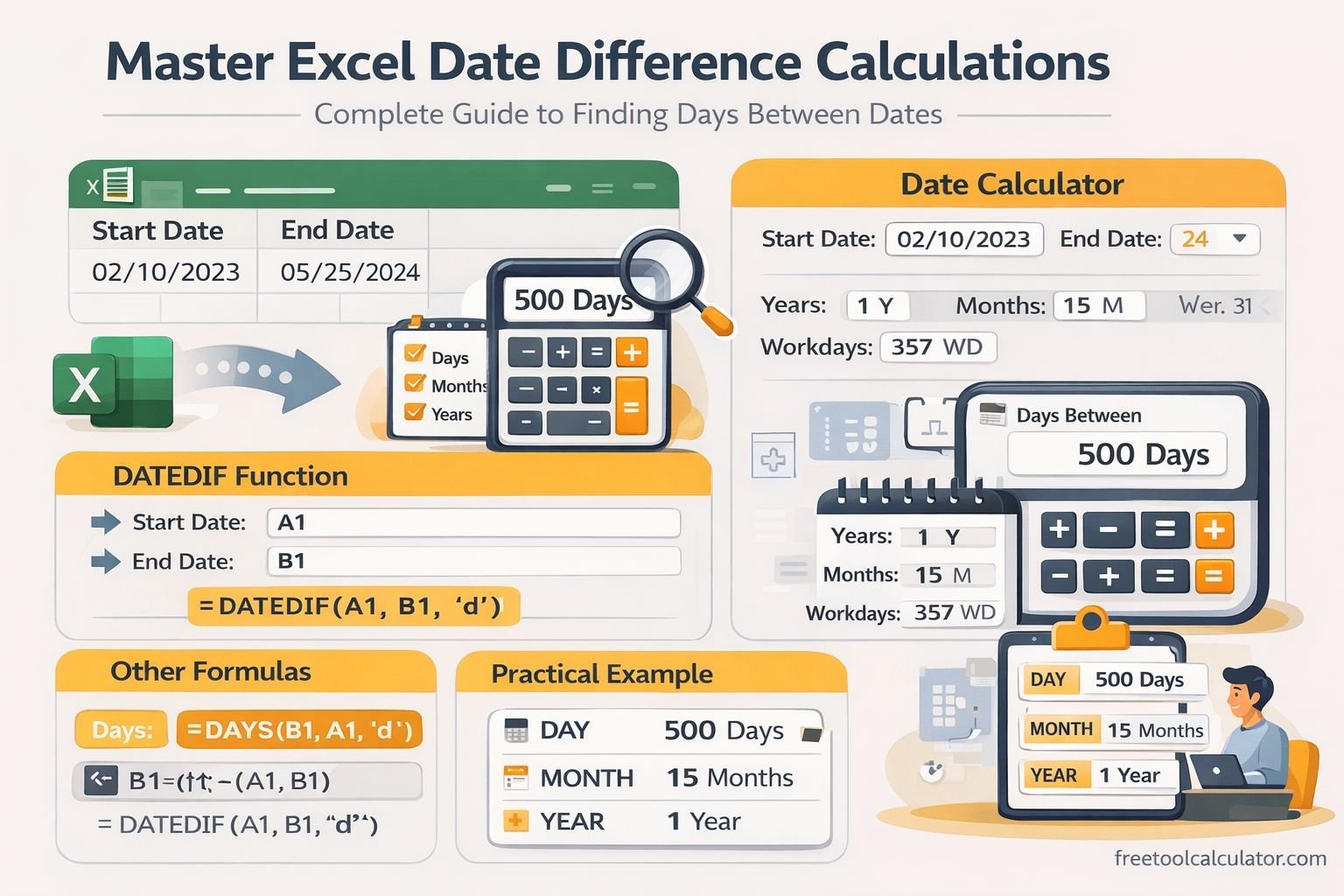
Method 3: The DATEDIF Function for Years, Months, and Days

DATEDIF (Date Difference) is Excel’s hidden gem — it’s documented in older versions but doesn’t appear in the function list in newer versions, yet it works perfectly. This function is essential when you need the difference between two dates in excel expressed in specific units.

Syntax

=DATEDIF(start_date, end_date, unit)

Unit Codes

  • “Y” – Complete years between dates
  • “M” – Complete months between dates
  • “D” – Days between dates
  • “MD” – Days difference, ignoring months and years
  • “YM” – Months difference, ignoring years
  • “YD” – Days difference, ignoring years

Practical Examples

Complete Years:
= DATEDIF(A2, B2, “Y”)
Returns the number of full years between dates.

Complete Months:
= DATEDIF(A2, B2, “M”)
Returns the total number of full months.

Age Calculation:
= DATEDIF(A2, TODAY(), “Y”) & ” years, ” & DATEDIF(A2, TODAY(), “YM”) & ” months, ” & DATEDIF(A2, TODAY(), “MD”) & ” days”
This formula calculates a person’s exact age.

Common Use Cases for DATEDIF

  • Employee tenure tracking
  • Loan or contract duration
  • Age calculation for eligibility requirements
  • Subscription or membership length

Method 4: NETWORKDAYS for Working Days Only

When you need to exclude weekends (and optionally holidays) from your date difference calculation, NETWORKDAYS is the appropriate function.

Basic Syntax

=NETWORKDAYS(start_date, end_date, [holidays])

This function counts the number of working days between two dates, automatically excluding Saturdays and Sundays.

Example

  • Start date: March 1, 2025 (Monday)
  • End date: March 10, 2025 (Wednesday)
  • =NETWORKDAYS(A2, B2)
  • Result: 8 working days (excludes March 1? Actually March 1 is included, March 2 Sunday excluded, etc.)

Excluding Holidays

To also exclude public holidays:

  1. Create a list of holiday dates in a separate range (e.g., D2:D10)
  2. Include that range in your formula:
    =NETWORKDAYS(A2, B2, $D$2:$D$10)

Custom Weekends with NETWORKDAYS.INTL

If your weekend isn’t Saturday-Sunday, use NETWORKDAYS.INTL:
=NETWORKDAYS.INTL(start_date, end_date, weekend, [holidays])

The weekend parameter uses a numeric code or a 7-character string:

  • 1 = Saturday-Sunday (default)
  • 2 = Sunday-Monday
  • 7 = Friday-Saturday
  • “0000011” = Saturday-Sunday as binary string (0=workday, 1=weekend)

Method 5: Calculating Time Differences with Dates

When your data includes both dates and times, you can calculate precise differences in days, hours, minutes, and seconds.

Basic Time Difference

= (B2 – A2) * 24
This returns the difference in hours (when both cells contain full date-time values).

Extracting Components

  • Days: =INT(B2 – A2)
  • Hours: =HOUR(B2 – A2)
  • Minutes: =MINUTE(B2 – A2)
  • Seconds: =SECOND(B2 – A2)

Complete Breakdown Formula

=INT(B2-A2) & ” days, ” & HOUR(B2-A2) & ” hours, ” & MINUTE(B2-A2) & ” minutes, ” & SECOND(B2-A2) & ” seconds”

For quick online verification of complex date-time differences, use the Date Time Difference Calculator, which handles time components automatically.

Common Excel Date Difference Scenarios

Project Duration Calculation

For project timelines, you might need both total days and working days. Combine simple subtraction with NETWORKDAYS:

  • Total days: =B2 – A2
  • Working days: =NETWORKDAYS(A2, B2, Holidays_Range)
  • Percentage of project completed: =DAYS(TODAY(), A2) / (B2 – A2)

Age Calculation for Records

=INT((TODAY() – birth_date) / 365.25)
Or more precisely:
=DATEDIF(birth_date, TODAY(), “Y”)

Days Until Deadline

=IF(TODAY() > deadline_date, “Overdue by ” & TODAY() – deadline_date & ” days”, deadline_date – TODAY() & ” days remaining”)

Monthly or Yearly Comparisons

To compare sales between two dates in different months:
=DAYS(end_of_month, start_of_month)

Handling Errors in Date Calculations

#VALUE! Error

This occurs when:

  • One or both cells contain text instead of dates
  • The date format is not recognized by Excel
  • Non-numeric characters are present

Solution: Use DATEVALUE() to convert text to dates, or check cell formatting.

#NUM! Error

Appears with DATEDIF when:

  • Start date is later than end date
  • Unit argument is invalid

Negative Results

If subtracting dates yields a negative number, ensure the end date is truly later than the start date, or use ABS() to get the absolute difference.

Incorrect Date Formatting

Excel may display a date difference as another date (e.g., January 14, 1900) instead of a number. Simply change the cell format to Number or General.

Comparing Excel Date Functions

FunctionPurposeExample
Subtraction (-)Days between dates=B2-A2
DAYS()Days between dates (explicit)=DAYS(B2,A2)
DATEDIF()Years, months, or days=DATEDIF(A2,B2,”Y”)
NETWORKDAYS()Working days (excl weekends)=NETWORKDAYS(A2,B2)
NETWORKDAYS.INTL()Working days (custom weekends)=NETWORKDAYS.INTL(A2,B2,7)

Best Practices for Date Calculations in Excel

  • Use consistent date formats across your workbook to avoid conversion errors
  • Store dates in their own columns rather than combining with text
  • Name your holiday ranges (e.g., =NETWORKDAYS(A2,B2, Holidays)) for cleaner formulas
  • Test edge cases like month boundaries and leap years (e.g., February 28 to March 1)
  • Verify results using a trusted tool like the Date Time Difference Calculator when accuracy is critical

Conclusion

Calculating the difference between two dates in Excel is a fundamental skill that supports project management, financial analysis, HR operations, and countless other business functions. Whether you need simple day counts with subtraction, precise age calculations with DATEDIF, or working day calculations with NETWORKDAYS, Excel provides robust tools for every scenario.

The key is selecting the right approach for your specific need:

  • Use simple subtraction or DAYS for basic day counts
  • Use DATEDIF for years, months, or age calculations
  • Use NETWORKDAYS for business timelines excluding weekends and holidays
  • Use date-time arithmetic for precise hour and minute differences

For quick validation or when Excel isn’t available, the Date Time Difference Calculator offers a reliable online alternative that handles days, hours, minutes, seconds, and even working day exclusions with the right holiday data.

Master these formulas and approaches, and you’ll handle any date difference calculation with confidence and accuracy.

Share this article:

On This Page

Subscribe to our newsletter

Read the latest articles from our experts

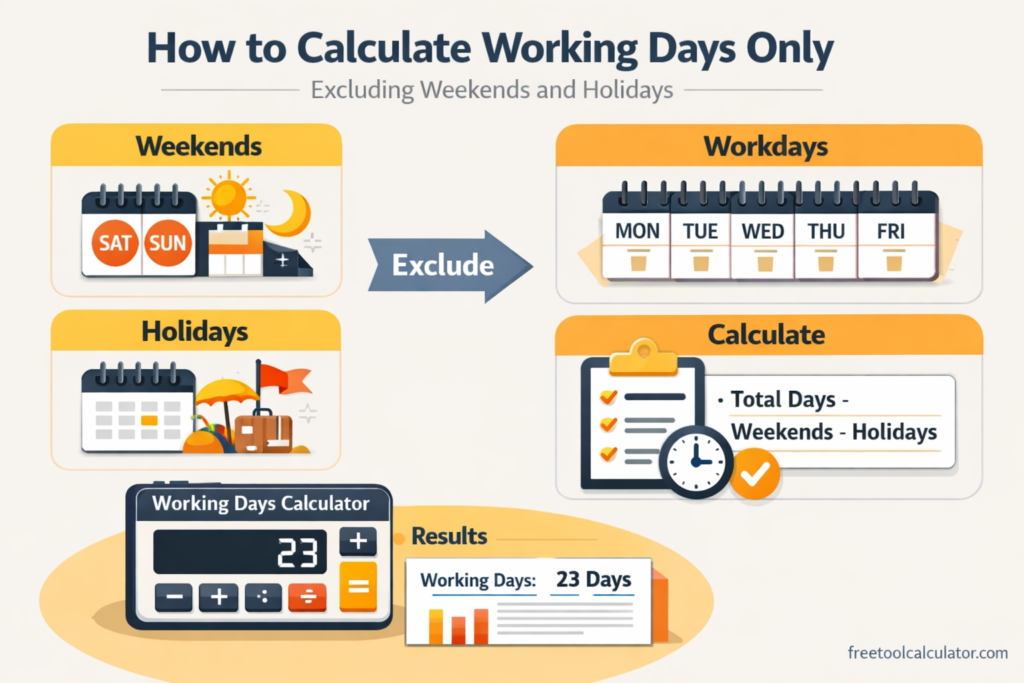
How to Calculate Working Days Only: Excluding Weekends and Holidays

How to Calculate Working Days Only: Excluding Weekends and Holidays

Calculating working days requires subtracting two dates and then removing Saturdays, Sundays, and public holidays. This guide explains the exact method, from basic date difference to full business day calculation, with practical examples for project planning, invoicing, and deadline management.

How to Apply Gradient to Text with CSS Background-Clip

How to Apply Gradient to Text with CSS Background-Clip

Master the CSS gradient text technique using background-clip: text and transparent text color. Learn how to create stunning typography effects that remain accessible, selectable, and SEO-friendly with practical code examples and browser support guidance.

Boost Muscle Mass and Cut Fat Your Ultimate Guide

Boost Muscle Mass and Cut Fat: Your Ultimate Guide

Transform your body with our ultimate guide to boosting muscle mass while cutting fat. Discover essential tips and strategies for your fitness journey.