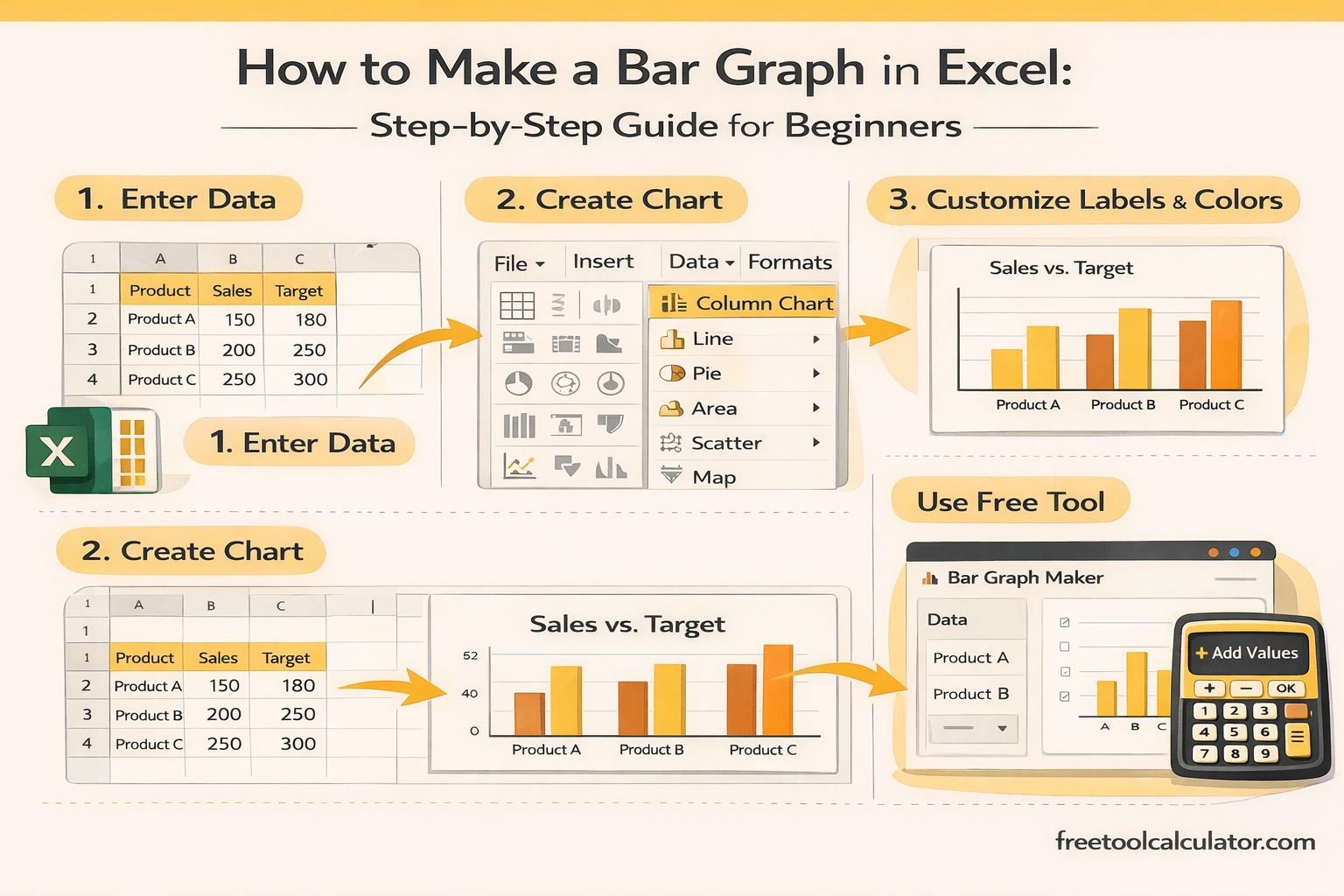
Quick answer: Put your category names in one column and values in the next, select the data, then choose Insert → Bar Chart and select a 2-D bar style. After Excel creates the chart, add a clear title, check the category order and remove visual elements that do not help the reader.
Example Data for a Bar Graph
| Product | Sales |
|---|---|
| Product A | 120 |
| Product B | 85 |
| Product C | 160 |
| Product D | 105 |
Keep categories in one field and numeric values in another. Avoid blank rows inside the selected range because they can create unwanted gaps or series.
How to Create a Bar Graph in Excel
- Enter your categories and values in adjacent columns.
- Select the complete data range, including the column headings.
- Open the Insert tab.
- Choose Insert Column or Bar Chart.
- Select a 2-D bar chart such as Clustered Bar.
- Replace the default chart title with a specific description of the data.
- Resize or move the chart as needed.
Bar Chart vs Column Chart
A bar chart uses horizontal bars; a column chart uses vertical columns. Horizontal bars are often easier to read when category labels are long or when many categories need to be compared. A column chart can work well for shorter labels or time-based categories.
How to Add Data Labels
Select the chart, use the chart-elements control or the Chart Design options available in your Excel version, and enable Data Labels. Labels can help when exact values matter, but they are unnecessary if they make a crowded chart harder to read.
How to Sort a Bar Graph
Sort the source table by its value column, then let the chart update from that sorted range. Sorting from largest to smallest can make category comparisons easier. Depending on Excel’s category-axis direction, you may also need to format the axis and reverse category order to place the largest bar at the top.
How to Switch Rows and Columns
If Excel interprets your data in the wrong orientation, select the chart and use Chart Design → Switch Row/Column. If that still produces the wrong result, check the structure of the source table and remove merged cells.
Common Bar Graph Mistakes
- Using 3-D effects that distort visual comparisons.
- Giving the chart a vague title such as “Chart 1.”
- Including too many categories to read comfortably.
- Using inconsistent units in one value series.
- Adding a legend when there is only one obvious series.
- Starting the value axis away from zero without a strong analytical reason, which can exaggerate differences.
Frequently Asked Questions
How do I make a bar graph from two columns in Excel?
Place category labels in the first column and values in the second, select both columns, then insert a 2-D bar chart.
Why is Excel showing multiple series?
Excel may be treating extra numeric columns as separate series. Check the selected range or use Select Data to define the intended categories and values.
Can a bar graph show percentages?
Yes. Store the source values as percentages and format the value axis or data labels as percentages where appropriate.
Last reviewed: October 2026. Menu labels can vary slightly between Excel versions and platforms.