Calculating age in Excel is one of the most common spreadsheet tasks for schools, businesses, HR departments, healthcare records, customer databases, membership lists, and personal tracking sheets. If you have a date of birth and need to calculate someone’s current age, Excel gives you several useful formulas that can do the job quickly.
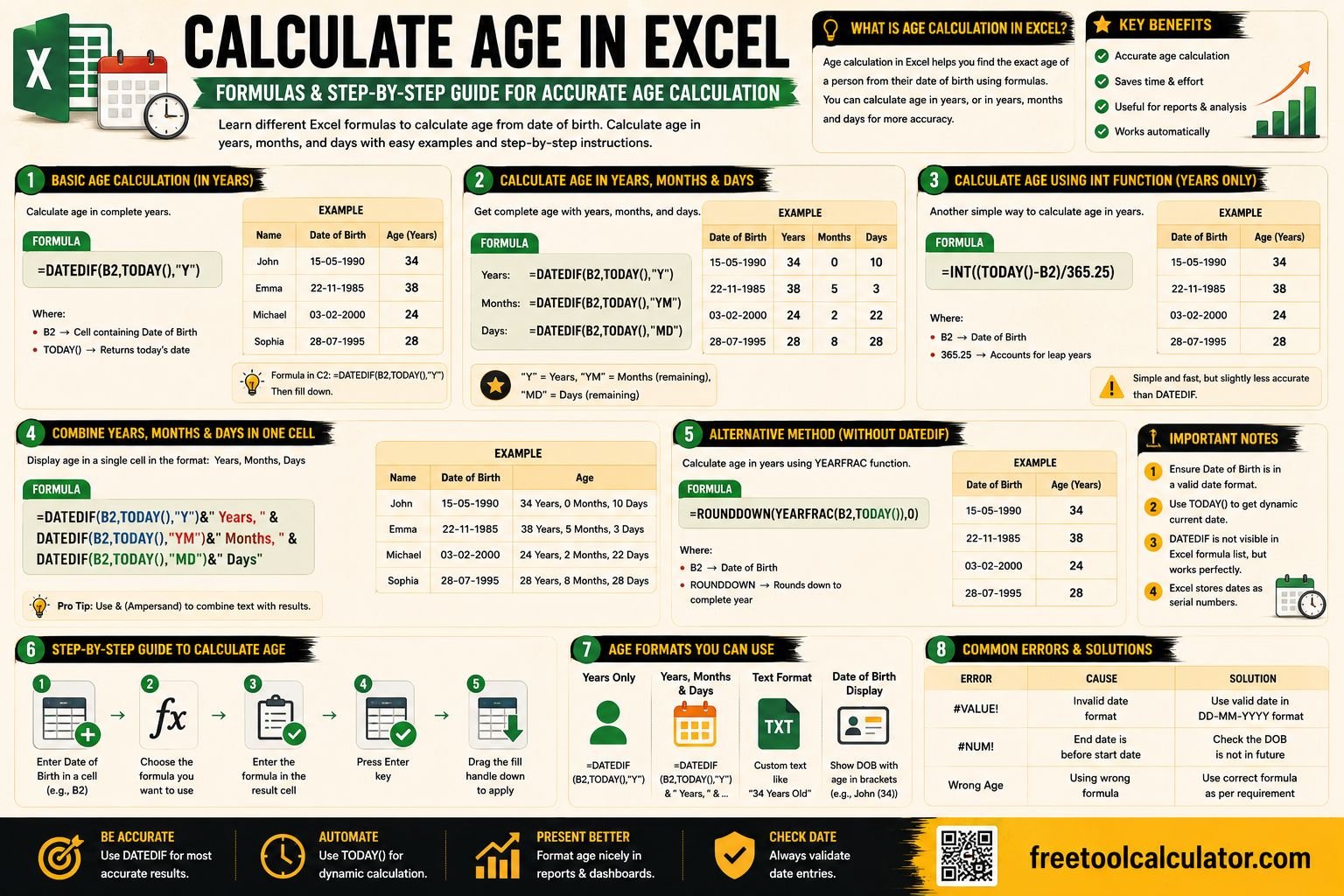
The easiest way to calculate age in Excel is to use the DATEDIF function with the TODAY function. This allows Excel to compare a date of birth with the current date and return the completed age in years.
If you want a faster online method without building formulas manually, you can also use our free Age Calculator to calculate exact age in years, months, and days instantly.
Quick Answer: How Do You Calculate Age in Excel?
The simplest Excel age formula is:
=DATEDIF(A2,TODAY(),”Y”)
In this formula:
- A2 contains the date of birth.
- TODAY() returns the current date.
- “Y” tells Excel to calculate completed years.
For example, if cell A2 contains a person’s date of birth, this formula calculates their current age in full years.
Why Calculate Age in Excel?
Excel is widely used for managing personal, academic, business, and administrative data. When working with dates of birth, manually calculating age can become slow and error-prone, especially when handling dozens, hundreds, or thousands of records.
Using an Excel age formula helps you:
- Calculate ages automatically from dates of birth.
- Update ages dynamically as time passes.
- Reduce manual calculation errors.
- Analyze age groups in large spreadsheets.
- Create reports for HR, education, healthcare, and customer records.
Because age changes over time, formulas based on the current date are especially useful. They update automatically whenever the spreadsheet recalculates.
Basic Excel Age Formula Using DATEDIF
The most reliable formula to calculate age from DOB in Excel is the DATEDIF function.
Formula
=DATEDIF(start_date,end_date,unit)
For calculating age:
=DATEDIF(date_of_birth,TODAY(),”Y”)
Example
| Date of Birth | Formula | Result |
|---|---|---|
| 15/06/1995 | =DATEDIF(A2,TODAY(),”Y”) | Age in completed years |
This formula calculates the number of full years between the date of birth and today’s date.
What Is the DATEDIF Function?
DATEDIF is a date difference function in Excel. It calculates the difference between two dates using a specified unit, such as years, months, or days.
Although DATEDIF may not always appear in Excel’s function suggestions, it still works in most modern versions of Excel. It is commonly used for age calculation because it handles completed years more accurately than simply subtracting dates.
DATEDIF Units for Age Calculation
| Unit | Meaning | Use Case |
|---|---|---|
| “Y” | Completed years | Age in years |
| “M” | Completed months | Total age in months |
| “D” | Total days | Total days lived |
| “YM” | Months after completed years | Years and months format |
| “MD” | Days after completed months | Years, months, days format |
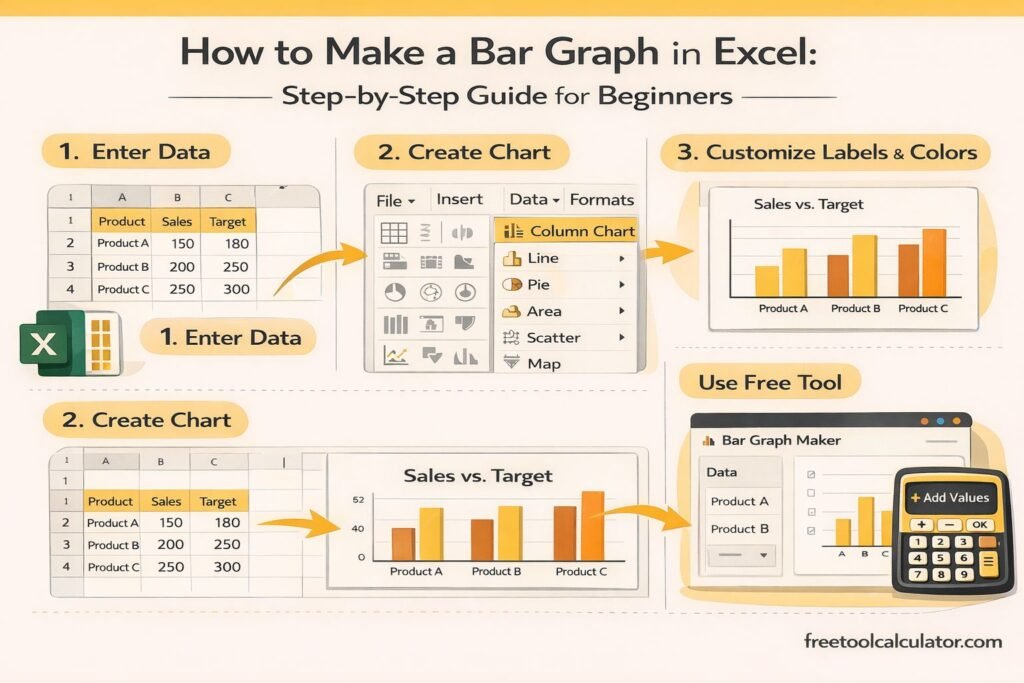
How to Calculate Age from Date of Birth in Excel
Follow these steps to calculate age from DOB in Excel.
Step 1: Enter the Date of Birth
Enter the person’s date of birth in cell A2.
Example:
15/06/1995
Step 2: Enter the Age Formula
In cell B2, enter:
=DATEDIF(A2,TODAY(),”Y”)
Step 3: Press Enter
Excel will calculate the person’s age in completed years.
Step 4: Copy the Formula Down
If you have multiple dates of birth, drag the formula down the column to calculate age for every row.
Example Age Calculation Spreadsheet
| Name | Date of Birth | Age Formula |
|---|---|---|
| Ali | 12/03/1998 | =DATEDIF(B2,TODAY(),”Y”) |
| Sara | 25/09/2001 | =DATEDIF(B3,TODAY(),”Y”) |
| John | 04/01/1987 | =DATEDIF(B4,TODAY(),”Y”) |
This structure is useful for HR records, student databases, event registrations, medical files, and customer information sheets.
Calculate Age in Years, Months, and Days
Sometimes you may need a more detailed age calculation instead of only completed years. Excel can also show age in years, months, and days.
Formula
=DATEDIF(A2,TODAY(),”Y”)&” years, “&DATEDIF(A2,TODAY(),”YM”)&” months, “&DATEDIF(A2,TODAY(),”MD”)&” days”
Example Output
28 years, 4 months, 12 days
This formula is helpful when you need exact age details for forms, applications, eligibility checks, personal records, or official documentation.
Calculate Age on a Specific Date
By default, TODAY() calculates age based on the current date. However, sometimes you may need to calculate age on a specific date, such as an event date, admission date, retirement date, or eligibility deadline.
Formula
=DATEDIF(A2,B2,”Y”)
In this formula:
- A2 contains the date of birth.
- B2 contains the target date.
- “Y” returns completed years.
Example
| Date of Birth | Target Date | Formula |
|---|---|---|
| 10/05/2000 | 01/01/2026 | =DATEDIF(A2,B2,”Y”) |
This is useful when age must be calculated as of a fixed date rather than today’s date.
For quick manual checks outside Excel, the free Age Calculator can calculate exact age instantly. You can also use the Date Time Difference Calculator when comparing two dates for reports, schedules, or records.
Calculate Age Using YEARFRAC in Excel
Another useful way to calculate age in Excel is the YEARFRAC function. This function returns the fraction of years between two dates. When combined with INT, it can calculate age in completed years.
Formula
=INT(YEARFRAC(A2,TODAY()))
In this formula:
- A2 contains the date of birth.
- TODAY() returns the current date.
- YEARFRAC calculates the year difference.
- INT removes decimals and returns completed years.
Example
| Date of Birth | Formula | Result |
|---|---|---|
| 20/08/1990 | =INT(YEARFRAC(A2,TODAY())) | Completed age in years |
This method is simple and works well for many spreadsheets, although DATEDIF is often preferred for detailed age calculations involving years, months, and days.
Calculate Age Using Simple Date Subtraction
You can also calculate age by subtracting the date of birth from today’s date and dividing the result by 365.25. This method is easy to understand but may be slightly less precise than DATEDIF for official age calculations.
Formula
=INT((TODAY()-A2)/365.25)
The number 365.25 is used to account for leap years. However, because calendar years vary, this method should be used for general estimates rather than strict eligibility rules.
Calculate Age in Months
Sometimes you may need to calculate total age in months, especially for infants, subscriptions, memberships, medical records, or service duration tracking.
Formula
=DATEDIF(A2,TODAY(),”M”)
This returns the total number of completed months between the date of birth and the current date.
Calculate Age in Days
If you want to calculate the total number of days someone has lived, use the DATEDIF function with the “D” unit.
Formula
=DATEDIF(A2,TODAY(),”D”)
This formula is useful for milestone tracking, countdowns, records, and date-based analysis.
Calculate Age Automatically for Multiple People
One of the main advantages of Excel is that you can calculate ages for many people at once. After entering your formula in the first row, simply copy or drag it down to apply it to the remaining rows.
Example Spreadsheet Layout
| Name | Date of Birth | Age |
|---|---|---|
| Person 1 | 14/02/1994 | =DATEDIF(B2,TODAY(),”Y”) |
| Person 2 | 08/11/2000 | =DATEDIF(B3,TODAY(),”Y”) |
| Person 3 | 30/06/1985 | =DATEDIF(B4,TODAY(),”Y”) |
This format works well for employee records, student databases, patient lists, membership records, and customer spreadsheets.
Common Excel Age Formula Errors
Age formulas in Excel are simple once you understand them, but small mistakes can lead to wrong results.
Date Stored as Text
If Excel does not recognize a date of birth as a real date, formulas may return errors. Make sure the date cell is formatted as a date, not plain text.
Wrong Date Format
Different regions use different date formats. For example, 05/06/2000 may mean June 5 or May 6 depending on your settings. Use a clear date format to avoid confusion.
Future Dates
If the date of birth is later than today’s date, Excel may return an error or unexpected result. Check your data before applying formulas.
Using Simple Subtraction Only
Subtracting years directly may ignore whether the birthday has already occurred this year. DATEDIF handles completed years more accurately.
Best Excel Formula for Age Calculation
For most users, the best formula to calculate age in Excel is:
=DATEDIF(A2,TODAY(),”Y”)
This formula is simple, accurate for completed years, and updates automatically. If you need exact age in years, months, and days, use the longer DATEDIF formula that combines “Y”, “YM”, and “MD”.
When to Use an Online Age Calculator Instead
Excel is excellent for spreadsheets and bulk records, but an online calculator is faster when you only need a quick result. Instead of building formulas, formatting cells, or checking errors, you can enter the date of birth and get the result instantly.
Our free Age Calculator calculates exact age in years, months, and days. It is useful for quick checks, personal use, eligibility dates, birthday planning, and record verification.
Related Date and Time Tools
If you work with dates regularly, these related tools can help with calculations beyond age.
- Age Calculator – Calculate exact age from date of birth.
- Date Time Difference Calculator – Find the difference between two dates and times.
- Add to Date Calculator – Add days, weeks, months, or years to a date.
- Subtract from Date Calculator – Subtract time from a specific date.
Frequently Asked Questions
What is the best formula to calculate age in Excel?
The best formula for most cases is =DATEDIF(A2,TODAY(),”Y”). It calculates completed years between the date of birth and today’s date.
How do I calculate age from date of birth in Excel?
Enter the date of birth in one cell, then use =DATEDIF(A2,TODAY(),”Y”) in another cell. Replace A2 with the cell containing the date of birth.
Why is my Excel age formula not working?
The most common reason is that the date of birth is stored as text instead of a real date. Check the cell formatting and make sure Excel recognizes the value as a date.
Can Excel calculate age in years, months, and days?
Yes. Use a combined DATEDIF formula with “Y”, “YM”, and “MD” units to display exact age in years, months, and days.
Does the age formula update automatically?
Yes. If you use TODAY(), Excel updates the age whenever the worksheet recalculates or the file is reopened.
Conclusion
Calculating age in Excel is simple once you know the right formula. The DATEDIF function is the most practical option for calculating completed years from a date of birth, while YEARFRAC and date subtraction can also be useful for general estimates.
For spreadsheets with many records, Excel formulas save time and reduce manual errors. For quick individual calculations, our free Age Calculator provides instant results without requiring formulas.
You can also use the Date Time Difference Calculator, Add to Date Calculator, and Subtract from Date Calculator for more date-based calculations, planning, and spreadsheet verification.